YouTongue for Chrome
Select a word. Hear it in real speech.
YouTube clips of people saying it — right on the page you’re reading.
Also works in Edge, Brave and Arc · no account
Available for Chrome on desktop — open this page there to add it.
How it works
Three steps, no settings-
1
Select a word
Any English word or short phrase, up to four words, on any page — articles, docs, email.
-
2
Right-click, or press Alt Shift Y
On a Mac it is Option Shift Y. Or click the YouTongue button in the toolbar and type a word.
-
3
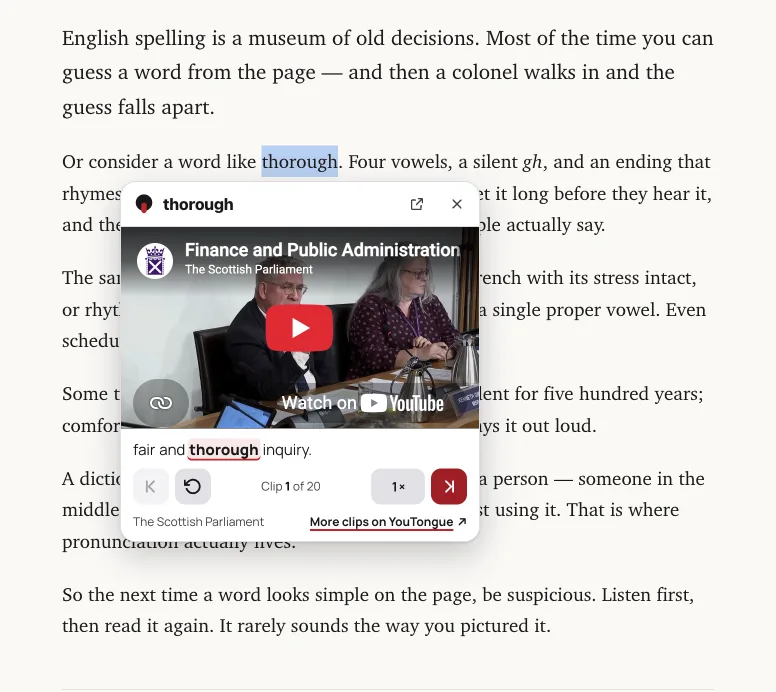
A card opens with real clips
People saying it mid-sentence. Next clip, replay, slow down — the page you are reading stays put.
No access to your sites
No host permissions. The extension does nothing until you ask, and then only on the current tab.
Only the selected word is sent
When you ask, that word goes to youtongue.me to find clips. Nothing else leaves the page.
No account
Nothing to sign up for, no tracking, no ads in the extension. Privacy policy
Questions
Is it free?
Yes. The extension and the site are free and need no account.
Which browsers does it work in?
Chrome on a computer, and browsers built on it that install from the Chrome Web Store: Microsoft Edge, Brave and Arc. Phones and Safari or Firefox are not supported — there, search on the site does the same job.
Why clips instead of a dictionary voice?
A dictionary gives one careful reading of a word. In conversation people reduce vowels, shift stress and run words together, and accents differ. YouTongue plays the sentence around the word, in the official YouTube player, so you hear it the way it is actually said.
What if a word has no clips?
The card says so. Rare words and names may not be in the index yet.