YouTongue for Chrome
Select a word. Hear it in real speech.
YouTube clips of people saying it — right on the page you’re reading.
Free · also works in Edge, Brave and Arc · New: a transcript beside any video with English subtitles
Available for Chrome on desktop — open this page there to add it.
How it works
Three steps, nothing to set up-
1
Select a word
Any English word or phrase, up to 100 characters, on any page — articles, docs, email.
-
2
Right-click, or press Alt Shift Y
On a Mac it is Option Shift Y. Or turn on the Hear button right next to the selection.
-
3
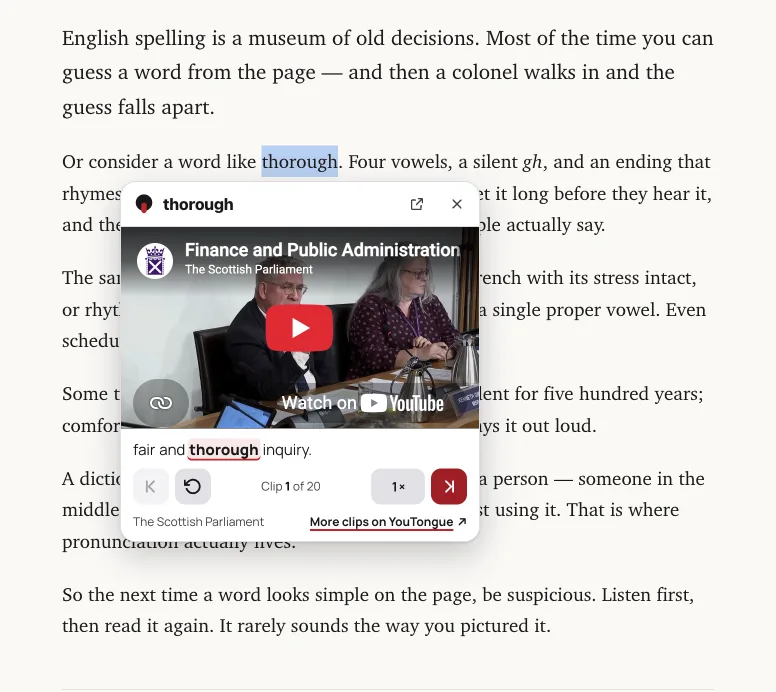
A card opens with real clips
People saying it mid-sentence — in any accent, or pick American, British, Australian or New Zealand. Next clip, replay, slow down; the page stays put.
Learn from what you watch
Netflix, YouTube and other sites with English subtitles-
1
Play a video with English subtitles
The toolbar icon shows EN when it finds them. One click opens the transcript beside the video.
-
2
Every line, in sync
The line being said lights up and stays in view. Click a time to jump back; search the whole episode for a word.
-
3
Tap any word
The video pauses. Hear the word in real clips, see what it means with Pro, save it to a folder — it lands in your library with the line it came from.
Know what it means
Meanings come with Pro-
One meaning in the card
Between the accents and the clip: part of speech, a guideword, the CEFR level and a short definition with an example.
-
Every sense on the site
“More meanings” opens the word on YouTongue: every sense, level by level, with UK and US transcription, next to the clips.
-
Phrases and idioms too
Phrasal verbs and idioms have their own entries, and a form like went shows the word it comes from.
Keep the words you meet
Sign in with Google — optional-
Save to a folder
One click under the clip saves the word to your last folder; the arrow picks another one or makes a new folder.
-
History by site
Every word you look up lands in your library, grouped by the page you were reading, with the sentence it came from.
-
Practice them as dictations
Hear the clip, type the missing word. Dictations from your own saved words: one folder a day free, every folder with Pro. Or say them out loud in Shadowing BETA — an AI scores every sound.
Off until you turn it on
Out of the box the extension acts only when you click or press the shortcut, and only on the current tab. The Hear button and subtitles ask Chrome first — one click on the welcome page or in the toolbar.
Only what the lookup needs
Subtitles are read in your browser and never uploaded. Only the word you look up is sent; signed in, the page address, title and line go to your library too. Never in incognito.
No ads, no tracking
Your library is yours: delete a word, a site or the whole account any time. Privacy policy
Questions
Is it free?
Yes. Hearing words is free and needs no account. Sign in to keep a history and folders: the Free plan keeps your whole history, on every site, and as many folders, words and notes as you like, and practises one folder a day in dictations and shadowing. Pro practises all your words without limits and shows what they mean.
Does it show what a word means?
With Pro, yes: the card shows the first meaning of the word with its guideword and CEFR level, and the site shows every sense. On the Free plan the card shows the part of speech and level, with the definition hidden. Names, brands and rare words may have no meaning yet — then the card shows just the clips.
Do I need to sign in?
No. Without an account the extension works the same, it just does not remember anything. Sign in from the toolbar popup or from the Save button — it is the same Google account as on the site, so the extension and the library stay in sync.
Which sites does the transcript work on?
Netflix, YouTube and most sites whose player shows English subtitles. If the toolbar icon doesn’t show EN, turn on English subtitles in the player. In full screen Chrome hides side panels — watch in a window.
Why does it ask to read data on websites?
To show the Hear button next to a selection and to find a video’s subtitles, the extension has to run on the pages you open. That is why both are off until you turn them on: the welcome page after installing asks Chrome once for both, and each has its own switch in the toolbar popup. The subtitles stay in your browser. The right-click menu and the shortcut work without this permission.
Can I choose an accent?
Yes. The row under the word in the card switches between any accent, American, British, Australian and New Zealand English. The extension remembers your choice.
Which browsers does it work in?
Chrome on a computer, and browsers built on it that install from the Chrome Web Store: Microsoft Edge, Brave and Arc. Phones and Safari or Firefox are not supported — there, search on the site does the same job.
Why clips instead of a dictionary voice?
A dictionary gives one careful reading of a word. In conversation people reduce vowels, shift stress and run words together, and accents differ. YouTongue plays the sentence around the word, in the official YouTube player, so you hear it the way it is actually said.
What if a word has no clips?
The card says so. Rare words and names may not be in the index yet. If there are clips, just not in the accent you picked, the card offers to play them in any accent.